
How to Recover Lost Photos from SD Cards
There is nothing more annoying than losing your photographs from an SD card, particularly when those images are precious memories or professional documents or even a rare vacation trip. If you realize that pictures stored on your SD card have gone missing, it is important to know the right recovery options to adopt right away.
There is actually a lot of information online that could help you recover deleted photos from the SD card even if you don’t have any backups.
In this guide, we will walk through some effective options for recovering your SD card photos on your Windows computer, so let’s get to it!
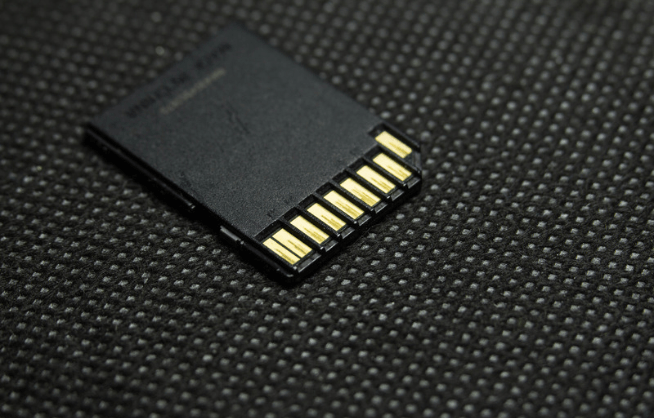
Why do SD Card Photos Become Missing?
Understanding the exact reason behind your SD card photo loss can help you choose the most effective recovery method. From my experience and research, here are the primary causes:
Mistaken deletion: No doubt, this is the most common reason behind SD card photos deletion. I am guilty of it too; when I am clearing out similar blurry images, I can also delete pictures I did need.
SD card formatting: An SD card appears empty when formatted, but only the index has been removed. The actual data remains intact temporarily. This means SD Card file recovery is often still possible.
File system corruption: This is generally caused by simple errors, for example by removing the card while data is being written, your laptop freezing during the transfer, or by having an unexpected power cut. In most instances the data itself is unharmed; the storage card has just lost the information which tells it where the data is located.
Attack by a virus or malware: Although it is less common than in other situations, it does occur. There are certain kinds of harmful software which are capable of damaging the data on the SD card or of deleting files without your permission.
Physical damage: Cracks, bends, or moisture exposure that damage the hardware itself. This scenario is typically the most difficult to fix.
What Should We Do Immediately After Photo Loss?
When you discover your SD card photos are gone, follow these critical steps without delay:
- Stop using the SD card immediately
- Avoid saving new photos or files onto that card
- Do not format the SD card again, especially without any backup
- Use a reliable card reader instead of connecting through your camera
Such measures block the possibility of data being overwritten, thus, providing you with a permanent opportunity to recover lost files.
How to Recover Lost Photos from SD Cards?
Method 1: Employ Software for Photo Recovery
It's time to use the appropriate strategy now that we know the reasons behind photo loss and the requirements for a successful recovery. To recover your photos, I suggest utilizing a trustworthy third-party program like RecoveryFox AI. Photos lost as a result of formatting, system errors, accidental deletion, and many other causes can be restored with this all-in-one data recovery program. Beyond photo recovery,
I've also used this tool to recover deleted audio and video files in various formats.
RecoveryFox AI can recover multimedia files of all types from a selection of internal and external storage devices. With their supported drive types, RecoveryFox can seamlessly recover deleted pictures and photos stored in file formats like PNG JPEG RAW BMP GIF, and TIFF.
I really like that in reality this data recovery software brings a preview of the detected files before the actual restoration process.
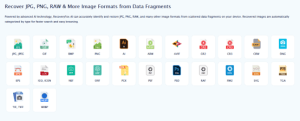
Here's my step-by-step process for using RecoveryFox AI to recover deleted files from an SD card:
Step 1: Download and install RecoveryFox AI from its official website onto your Windows computer. After that, insert your SD card in the computer with any appropriate card reader.
Step 2: Start the software and select the “Scan” button to initiate the scanning. It begins with a quick scan, followed by an AI scan. For a more comprehensive search of your SD card, wait until the AI scan is 100% complete.
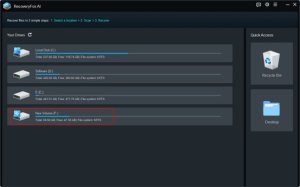
Step 3: Upon completion of the scan, check the scanned images and see whether they are good to recover or not. Choose the required images and press the “Recover” button.

Note: Please note that the period taken for scanning is dependent on the hardware of the PC. Typically, systems with faster processors and larger memory complete photo recovery scans more quickly, especially when using "AI Scan" mode.
Method 2: Retrieve Lost Pictures through Cloud Backup
Alongside making use of picture recovery tools, it may be possible to take advantage of cloud storage solutions such as Google Drive, Google Photos, and OneDrive to back up copies of your precious images. Personally, I have found cloud storage to be among the quickest and most dependable means of recovering lost images from an SD card provided that the automatic synchronization feature is active.
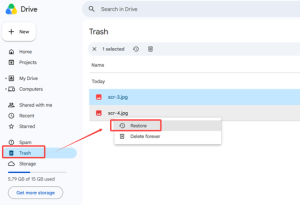
- To start retrieval, you should sign in to your cloud storage service.
- Then, proceed to the "Recycle Bin" (or whatever similar folder you use) and see if it contains currently deleted files.
- Find and open the deleted images you need to recover.
- Click on the “Restore” button to recover the selected images back to your computer.
Method 3: Recover Photos from Windows Backup
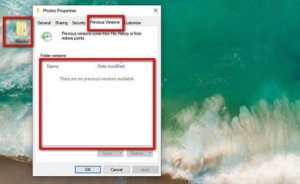
If you regularly keep backups of crucial files and folders, you may find your missing pictures amongst these backups. The Windows File History backup tool is included in Windows and automatically makes copies of your data, thus allowing you to restore past versions of your data. Here is the process to follow when using this feature:
- First, go to the folder where SD card images were taken from (for instance, the "Pictures" folder).
- Right-click anywhere in the folder, opt for the "Properties" option and check the "Previous Versions" tab.
- A list of dates where backups have been made will be available; choose the previous version prior to the deletion of your pictures.
- Click “Open” to find out if your photos are there and click “Restore” to get the photos back in their original folders.
Free vs. Paid Recovery: Which One Should I Choose?
Among the different ways to recover lost photos from an SD card that we’ve been discussing so far, the first option is a paid one while the second and the third ones are completely free of charge. Many people ask me whether they should invest in a paid file recovery tool. The truth is, understanding the difference between free and paid options is essential. I'd recommend choosing the free version when:
- Photos were recently deleted (higher chance of success before data gets permanently overwritten)
- No new data has overwritten the deleted files (the original photo data remains recoverable)
- You only need basic recovery functionality without advanced features
Final Verdict
It is now simpler than ever to recover SD card photos on a Windows computer in 2026. I always suggest starting by checking previously created backups, such as File History or cloud backup options. However, if you don't have any backups, a great photo recovery tool like RecoveryFox AI is an excellent choice. The key is to avoid saving new files and folders to your SD card, this could overwrite deleted files and complicate the recovery process.
Before making a purchase, you can test out the unregistered version of RecoveryFox AI if you're interested. However, you should update to the registered version if you need to recover files.

Nuno
Nuno Sá Pessoa is an award-winning filmmaker whose films have been shown in more than 200 film festivals and venues from around the globe.
He also has a passion for self-education, self-expression, freedom, privacy, and independence, all of which led to the creation of RushRadar.